Creating a New User
1. Navigate to the Manage Users screen. (Security > Manage Users > Create User)
|
Note: To prevent duplicate user profiles, search to ensure there is not an existing profile before creating a new user profile. |
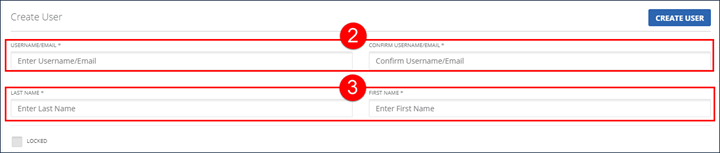
2. Enter and confirm the new user’s email address, this is also the username for this user.
3. Enter the user’s Last Name and First Name.
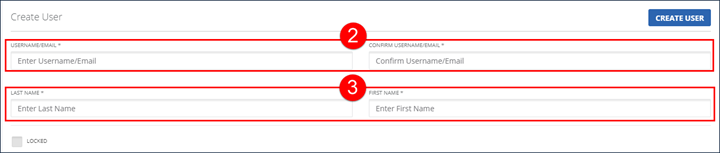
Create New User
4. Click on a role and use the assignment buttons to move roles between the AVAILABLE ROLES and ASSIGNED ROLES fields.
The roles in the Available Roles field represent all roles that can be assigned to a user. The roles in the Assigned Roles field represents which roles are assigned to the user. Assigning multiple roles to a user gives them the privileges assigned to each assigned role.
Managing Roles
5. Click on a privilege and use the assignment buttons to move privileges between the AVAILABLE PRIVILEGES and the ASSIGNED PRIVILEGES fields.
The privileges in the AVAILABLE PRIVILEGES field represent all privileges that can be assigned to a user. The privileges in the ASSIGNED PRIVILEGES field represent all privileges assigned to the user.
|
Note: It is best practice to use privileges to create a User Role rather than assigning individual privileges. This is because privileges may change over time and if changed must be updated for each user assigned that privilege. Updating a user role with a new privilege grants that privilege to every user assigned that user role, making it much easier to manage. |
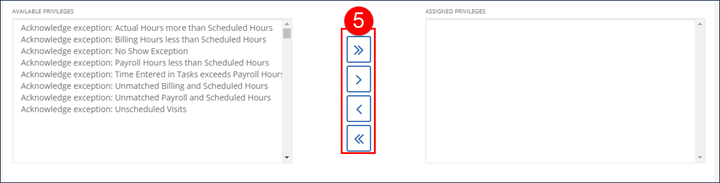
Managing Privileges
6. Click on a client and use the assignment buttons to move clients between the AVAILABLE CLIENTS and ASSIGNED CLIENTS fields.
The clients in the AVAILABLE CLIENTS field represents all clients that can be assigned to the user. The ASSIGNED CLIENTS field represents all clients currently assigned to the user. These fields are only available for consumer direct and non-agency accounts.
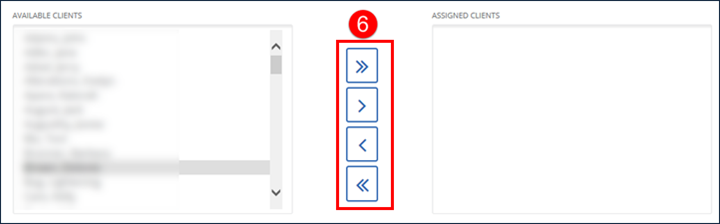
Manage Clients
7. Click on an employee and use the assignment buttons to move employees between the AVAILABLE EMPLOYEES and ASSIGNED EMPLOYEES fields.
The AVAILABLE EMPLOYEES field represents all employees available to be assigned to this user. The ASSIGNED EMPLOYEES field represents all employees currently assigned to this user. These fields are only available for consumer direct and non-agency accounts.
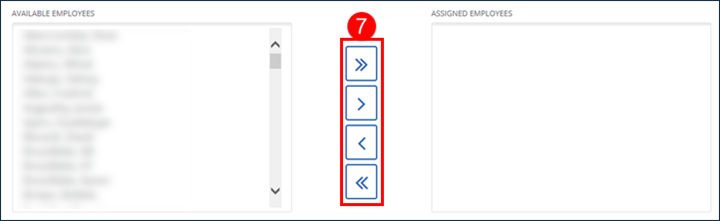
Manage Employees
8. Click on a supervisor and use the assignment buttons to move employees between the AVAILABLE SUPERVISOR and ASSIGNED SUPERVISOR fields.
The AVAILABLE SUPERVISORS field represents all supervisors available to be assigned to this user. The ASSIGNED SUPERVISORS field represents all supervisors currently assigned to this user. When no show alerts are enabled, the user receives alerts for the clients of all assigned supervisors.
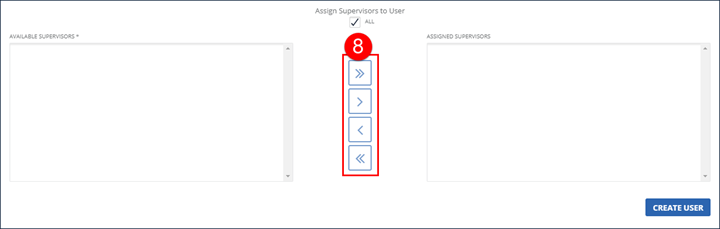
Assign Supervisors
9. Click CREATE USER.
The system creates a new user and displays a confirmation message. An email is sent to the new user’s email address (also their username) with a temporary password.
Create User Button
Comments
0 comments
Please sign in to leave a comment.