Creating a New Employee Profile
1. Navigate to the Create Employee screen. (Data Entry > Employees > Create Employee)

Create Employee Button
|
Note: If social security number validation is not enabled, search to ensure there isn’t an existing profile before creating a new client profile. This prevents duplicate employee profiles. |
2. Enter/Select all applicable fields.
Required fields are indicated by an asterisk (*) and vary based on configuration. At minimum all required fields must be populated.
3. Click SAVE.
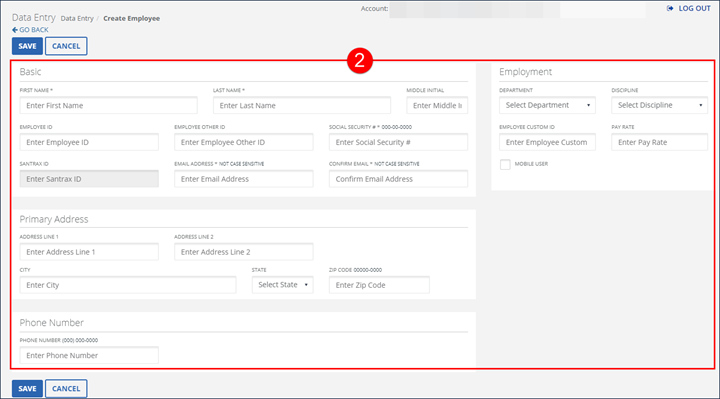
Create Employee screen

Save Button
4. Click OK on the Save Confirmation popup.
A notification of confirmation or error displays at the top of the screen. The Save Confirmation pop-up includes a notice if the MOBILE USER checkbox is not selected.
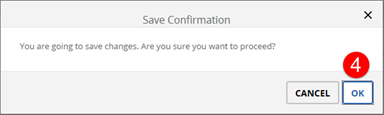
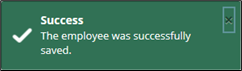
Save Confirmation and Confirmation/Error Notification
|
Note: Use the CREATE EMPLOYEE button at the top of the Edit Employee screen to create clients consecutively without returning to the Employees screen. |
Comments
0 comments
Please sign in to leave a comment.