Introduction
Beginning on September 1, 2023, all Electronic Visit Verification™ (EVV ™) visits for the Missouri Division of Developmental Disabilities (“DDD”) will be required to have the Memo field completed for certain services.
The Memo field requires a minimum of 25 characters up to a maximum of 1,024. Visits without the Memo field completed will be marked as “Incomplete” in the Sandata Aggregator. This exception will be visible when reviewing visits in Sandata Aggregator but will not reach a “Verified” status until the Memo field has been completed.
Visits that are “Incomplete” are not compliant and must be corrected in Sandata Agency Management.
|
|
Notes: Caregivers are responsible for adding memos using Sandata Mobile Connect® (“SMC”). IVR or telephony does not support adding a memo. Agency users will need to add the memo directly in Sandata Agency Management after the visit has occurred.
Missing Memos will not prevent a visit that is set to auto-confirm from auto-confirming and being sent to the Sandata Aggregator. Agency users working to identify and fix these exceptions should be aware that even though a visit is in a confirmed status in Sandata Agency Management, the exception that shows in the Sandata Aggregator must be resolved in Sandata Agency Management. |
Adding a Memo to a Visit in Sandata Mobile Connect
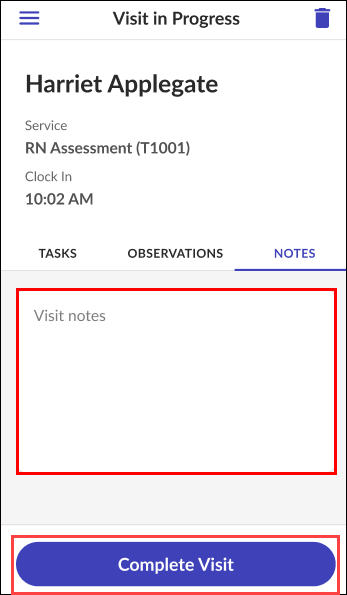
When using Sandata Mobile Connect to perform a visit, a Memo can be added using the Visit notes feature.
To add a memo via the Visit notes:
1. Tap the NOTES tab.
2. Tap the Visit note field.
3. Enter any notes about the visit.
4. Tap Complete Visit.
Viewing Exceptions in Sandata Aggregator
Visit information can be viewed in the Visit Review module of Sandata Aggregator (EAS) and exported to Microsoft Excel or Comma Delimited (CSV) files. Visits with a Missing Memo exception are not displayed by default in the Exception Types filter in Sandata Aggregator, because of their association to services and payers.
Enabling the Memos column in the Visit Grid
1. Open the Visit Review module.
2. Use the filters to enter search criteria for the agency, client, and date range as needed.
3. If the Filter Visits By dropdown is not already set to "All Exceptions," open the dropdown and select "All Exceptions."
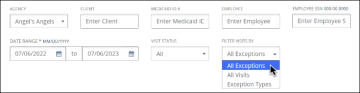
4. Select Search.
5. Open the Show Advanced Filter Options dropdown on the right side of the screen.

6. Open the Show Display Options dropdown on the right side of the screen, above the Visit Grid.
7. Select Memo to enable the Memos column.
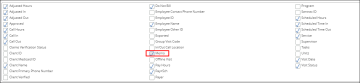
8. Close the Display Options.
The Memo column will now be displayed on the Visit Grid, and any Missing Memo exceptions will be identified in the Memo column with a red exception indicator.
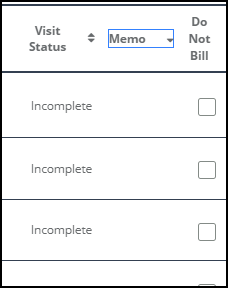
Use the Save Settings button under Advanced Filter Options to keep the Memo column enabled for future logins to Sandata Aggregator.
Filtering for Missing Memos Exceptions
"Missing Memo" is not initially available as an option under the Exception Types filter because of their association to services and payers. To enable Missing Memos, a payer must first be selected under Advanced Filter Options.
1. Enter search criteria for the agency, client, and date range as needed.
2. Use the Filter Visits By dropdown to select Exception Types.
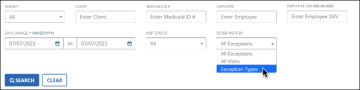
3. Open the Show Advanced Filter Options dropdown on the right side of the screen.
4. Use the Payer dropdown to select "MODSS" as the payer.
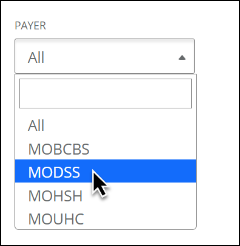
Missing Memo can now be selected under the Exception Types filter:

Adding a Memo to a Visit in Sandata Agency Management
If a visit is “Incomplete” because it is missing a memo, the memo and a Reason Code must be added to the visit in Sandata Agency Management before it can be re-sent to the Sandata Aggregator for approval.
|
|
Note: The memo must be added before the Reason Code to the corrected visit. Not following this order may result in the visit remaining in an “Incomplete” status. |
To add a memo to a visit in Sandata Agency Management:
1. Navigate to the Santrax Maintenance screen.
Main Menu > Scheduling > Santrax Maintenance
2. Use the filters to locate and open the visit needing a memo.
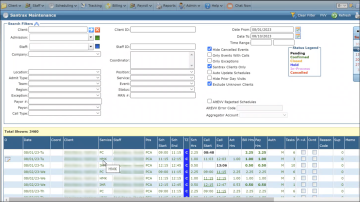
3. Click the Task Notes button.
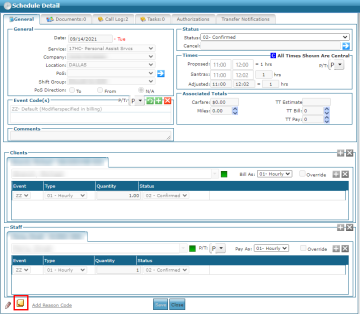
4. Click Add.
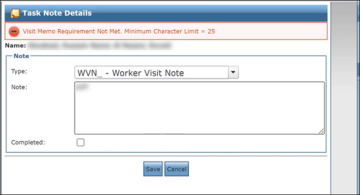
The Task Note Details window will open.

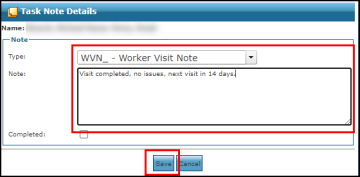
5. Select WVN_ - Worker Visit Note from the Type drop down.
6. Enter the memo in the Note field (Must be between 25 and 1,024 characters).
Saving a memo with less than 25 characters will display a reminder that the minimum must be met.
7. Click Save.
8. Return to the Visit Details.
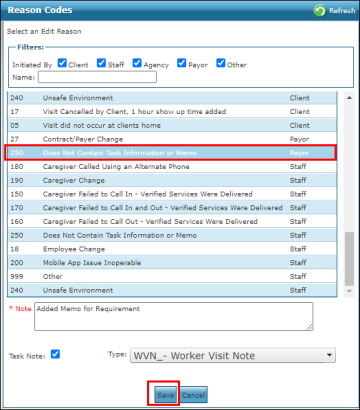
9. Click Add Reason Code.
10. Select Reason Code 250 – Does Not Contain Task Information or Memo.
11. Click Save.
The memo is added to the visit, making it “Complete,” and it can now be re-sent to the Sandata Aggregator. Please allow up to 24 hours to see the updated visit in your Sandata Aggregator Portal.
Comments
0 comments
Please sign in to leave a comment.