Confirmation and Hold Settings
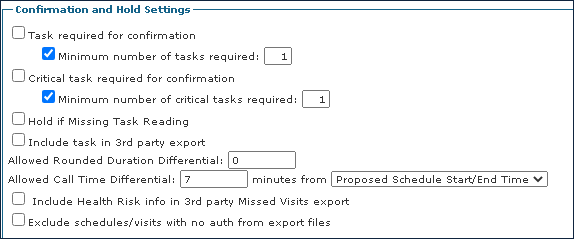
The Confirmation and Hold Settings area on the Santrax Options tab contain options to limit the automatic confirmation of visits when calls are received, based on the number of required tasks completed and call duration.
Field | Description |
|---|---|
Task required for confirmation | Select this check box to require tasks prior to changing a schedule's status to ‘Confirmed.’ |
Minimum number of tasks required | Select this check box and indicate the number of tasks required to change a schedule’s status to ‘Confirmed.’ |
Critical task required for confirmation | Select this check box to require ‘Critical’ tasks prior to changing a schedule’s status to ‘Confirmed.’ |
Minimum number of critical tasks required | Select this check box and indicate the number of critical tasks required to change a schedule’s status to ‘Confirmed.” |
Hold if Missing Task Reading | Select this check box to require a task reading to be entered prior to changing a schedule's status to ‘Confirmed.’ |
Include task in 3rd party export |
|
Allowed Rounded Duration Differential | Use this field to specify at the payor level how many minutes outside of the "Proposed" total hours a rounded "Santrax" hours value can confirm a visit, by setting the "Allowed Rounding Duration Differential.” |
Allowed Call Time Differential | Use this field to specify how many minutes outside of the proposed schedule the actual Santrax start time can be to automatically "Confirm" the visit. If a visit call time is outside of the differential, the visit will be marked as on hold, and have the exception 'Call Time Outside Payor Tolerance'. The default value for this field is 120 minutes. |
Minutes from | Use this drop down to set the threshold tolerance level. |
Include Health Risk info in 3rd party Missed Visits export |
|
Exclude schedules / visits with no auth from export files |
|
Comments
0 comments
Please sign in to leave a comment.