Task Exception
A ‘Task Exception’ displays when the required number of critical tasks are not included when a field staff makes a call out.
Resolving a Task Exception
1. Double click on the visit to open the Schedule Detail.
2. Click the Tasks tab.

3. Click Add New Task.

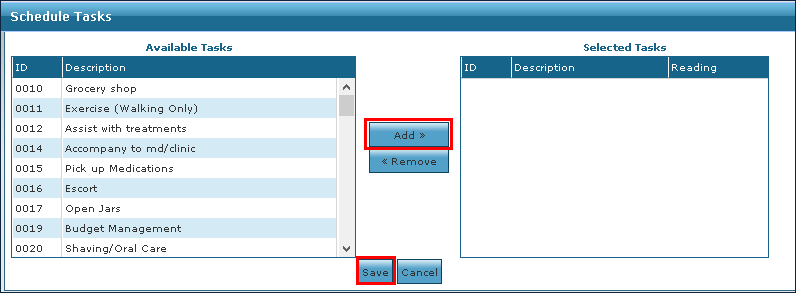
4. Select the task from the Available Tasks section.
5. Click Add.
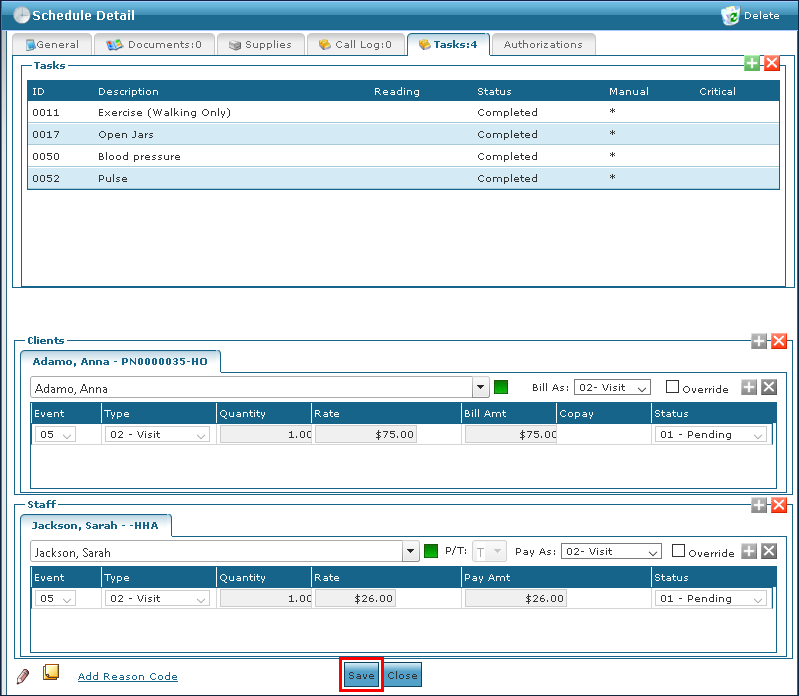
Tasks manually added will have an * next to them to indicate that they were added after the visit.
6. Click Save once all tasks have been added.
The tasks are added to the schedule.
7. Click Save.
If confirming the visit, select a reason code.
Comments
0 comments
Please sign in to leave a comment.