Wage Types
Wage Types in combination with Job Titles form the Tasks in Time Clock and Time Tracking that staff select when entering time. The Wage Types that sync to DataPlus should only be the active Wage Types that staff would select such as Regular, Sick or Vacation. Wage Types that Payroll Staff would enter such as Adjustments or Bonuses should not sync. In addition, Wage Types such as Holiday Worked that can be determined via the ProviderPro Calculate Wages Wizard should not sync.
Note: Wage Timeframes, Replacements and Actions may also need to be set up to handle wage types such as, Holiday Worked and Shift Differentials, if not already set up.
To sync wage types:
- Log in to your ProviderPro live database.
-
Choose.
Step Results: The Wage Type form will open
in a new window tab.
- Enter the code or description of the wage type in the Toolbar Lookup and press Enter to
open it.
Make sure the Active check box is selected.
- Click theDataPlus Sync tab.
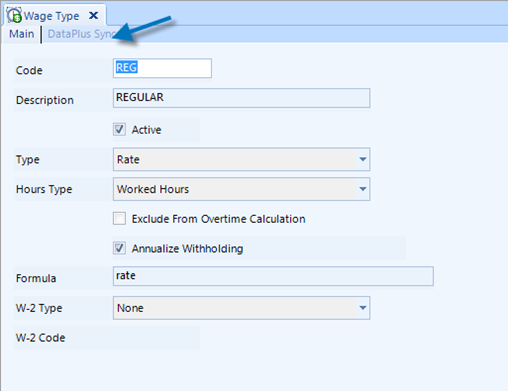
-
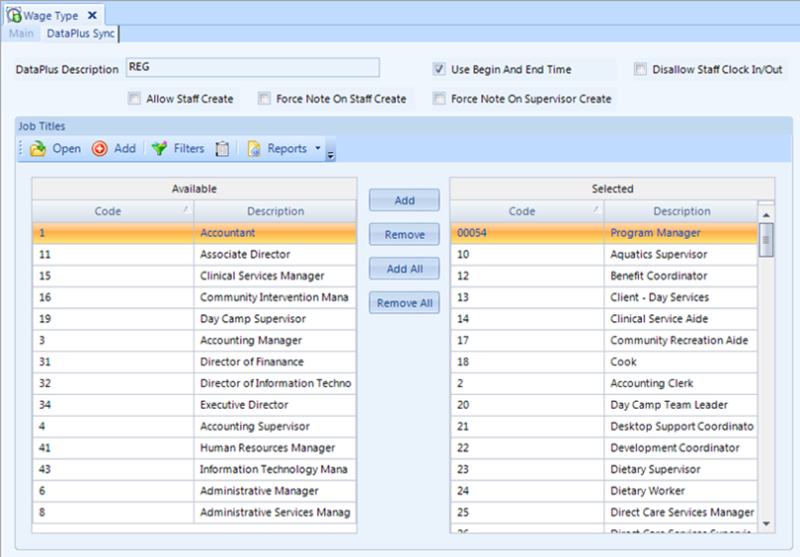
Complete the following information:
|
DataPlus Description |
A short description of the wage type that will appear in the Time Clock task. As a best practice, Sandata recommends using the wage type Code as the DataPlus Description.
The wage type and job title descriptions combined cannot be greater than 40 characters.
If the Description on the DataPlus Sync tab is blank, Time Clock will use the Description on the Main tab instead.
|
| Use Begin And End Time
|
This option is selected by default. Leave it selected if staff must enter a begin and end time for the wage type. Clear this option if staff will enter total hours only. This setting is typically selected for hours worked and off for non-worked hours. (Time Clock Only) |
| Disallow Staff Clock In/Out
|
Select this option if Use Begin and End Time is also selected, but you don't want staff to clock time against this wage type. If selected, only managers will be able to use this wage type for their staff.(Time Clock Only) |
| Allow Staff Create
|
Select this option if staff will enter total hours for this wage type. If Use Begin and End Time is also selected, staff will be able to change their clocked time. (Time Clock Only) |
| Force Note On Staff Create
|
Select this option to require staff to enter a note when they enter a new time entry using the Create button. (Time Clock Only) |
| Force Note On Supervisor Create
|
Select this option to require managers to enter a note when they enter a new time entry using the Create button. (Time Clock Only) |
-
Select the job titles that when combined with this wage type will create valid tasks in Time Clock and Time Tracking. Only wage types that have at least one job title associated with it will become a task.
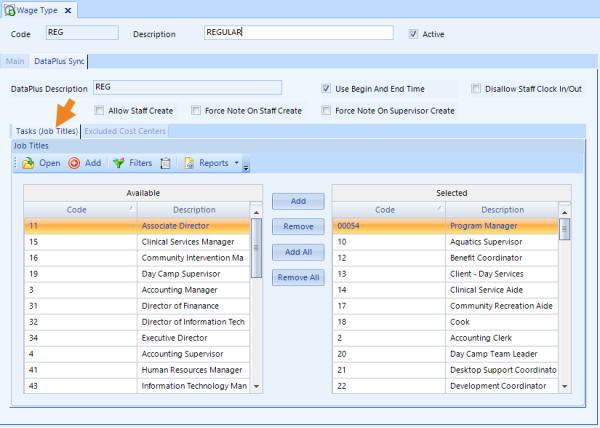
- When finished, click Save to save the changes to the wage type.
The wage types will automatically sync to Time Clock and Time Clock overnight or you can Request a Sync.
Comments
0 comments
Please sign in to leave a comment.